Imagine this: you're curled up on your couch, Steam Deck in hand, ready to dive into the beautiful, cozy world of Infinity Nikki. But wait, it's not on Steam? Don't worry, fellow gamer, you're not out of luck! While the process requires a few extra steps, getting this gorgeous open-world dress-up adventure running smoothly on your Deck is totally doable. Forget the tedious Epic Games route–we've got a simpler method that will have you exploring in no time. Ready to transform your Steam Deck into the ultimate Infinity Nikki machine? Let's get started!
Essential Prep Work: Know Your Keybinds!
Before we dive into the installation, let's get familiar with some crucial controls for Desktop Mode. Trust us, this will save you a ton of frustration!
🔑 Crucial Steam Deck Desktop Controls:
-
Steam + X: Summons the on-screen keyboard. You'll need this for logging in!
-
LT (Left Trigger): Acts as the RIGHT mouse click.
-
RT (Right Trigger): Acts as the LEFT mouse click.
Got those memorized? Perfect! Now, let's switch gears.
Step 1: Enter the Desktop Realm
First things first, we need to leave Gaming Mode. Here’s how:
-
Hold down the Power Button to open the power menu.
-
Select "Switch to Desktop".
You'll now see a full Linux desktop. Welcome! This is where the magic happens.
Step 2: Download the Game Installer
Time to grab the game files from the official source.
-
Open your web browser (like Firefox).
-
Head to the official website: infinitynikki.infoldgames.com.
-
Look for the "Windows Download" button and click it!
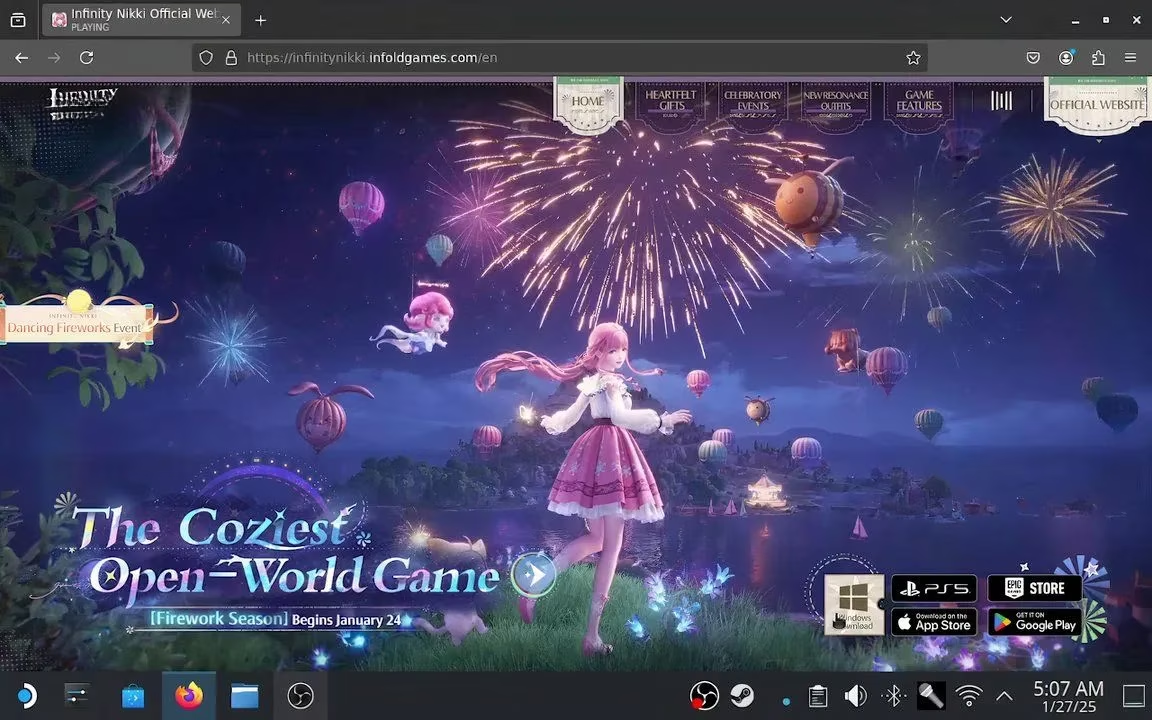
The .exe setup file will land in your Downloads folder. Easy so far, right?
Step 3: Add the Installer to Steam
This is the clever part—we're going to trick Steam into running the Windows installer for us.
-
Open the Steam application on your desktop. Do NOT switch back to Gaming Mode yet!
-
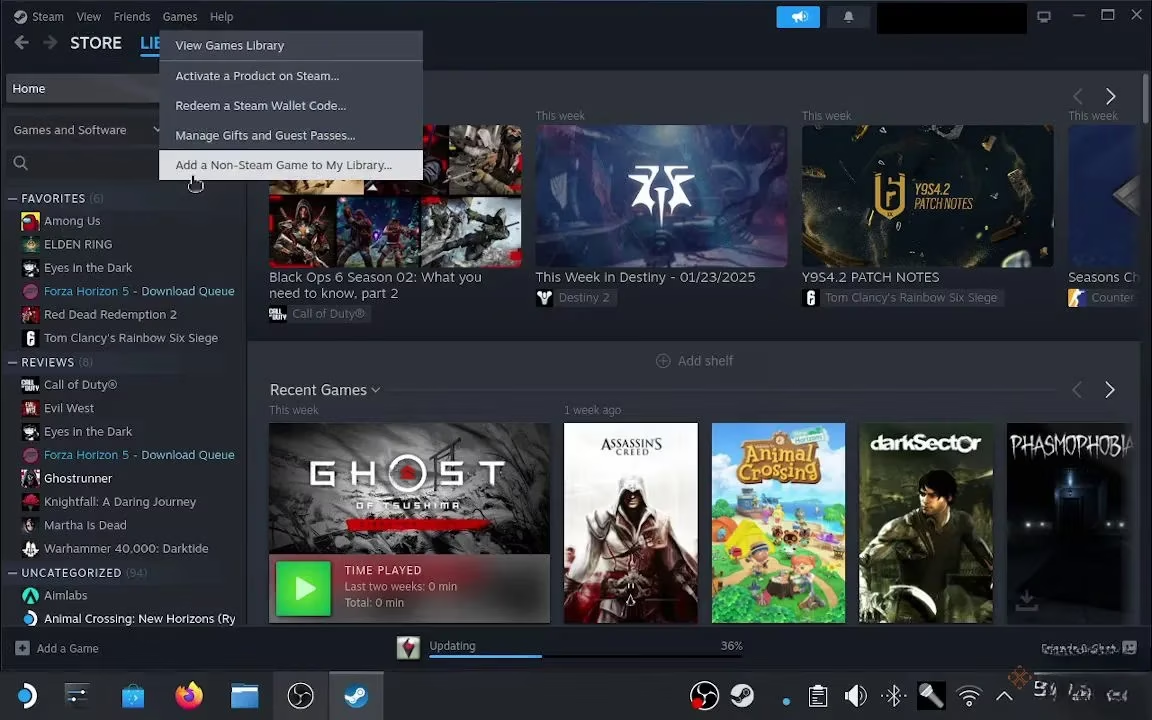
In the top menu, click Games > Add a Non-Steam Game to My Library.
-
A new window pops up. Click Browse....
-
Navigate to your Downloads folder, select the Infinity Nikki Setup.exe file, and click Open.
-
Back in the menu, make sure the box next to the setup file is checked, then click "Add Selected Programs".
Boom! The installer is now in your Steam library.
Step 4: Configure Proton & Run the Installer
Steam needs a little help (called Proton) to run Windows programs. Let's set that up.
-
In your Steam library, find the Infinity Nikki setup entry.
-
Click the gear icon (Settings) next to it and select Properties.
-
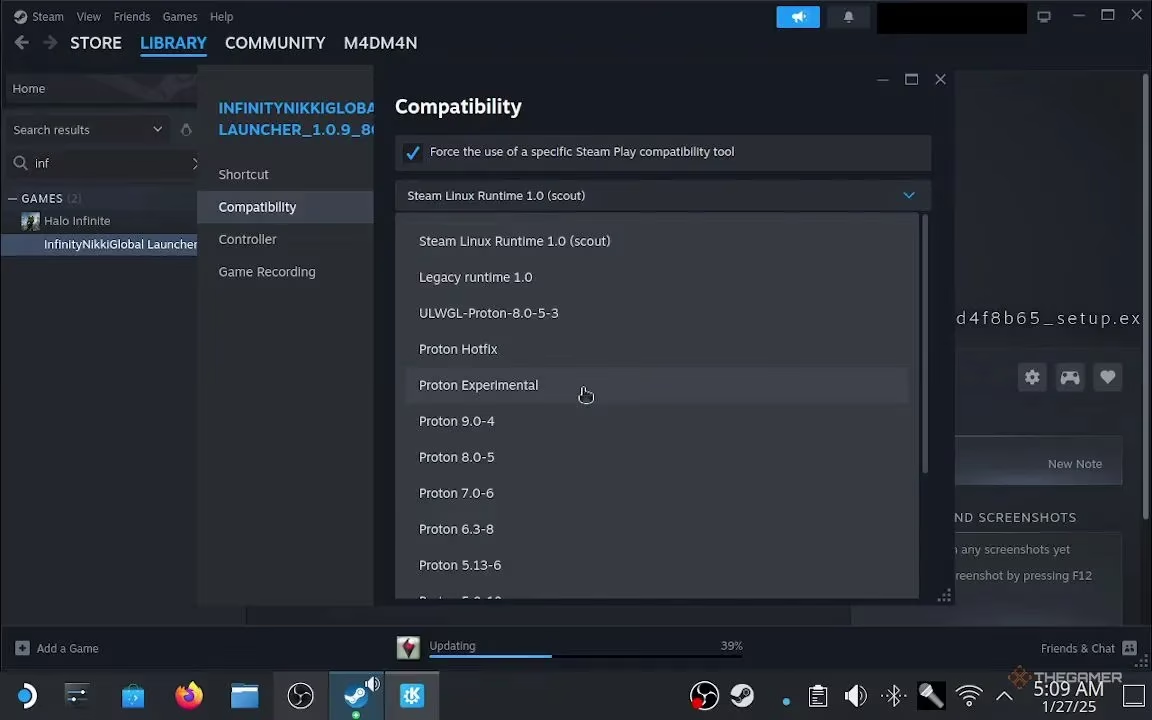
Go to the Compatibility tab.
-
CHECK the box that says "Force the use of a specific Steam Play compatibility tool."
-
From the dropdown menu, select Proton Experimental.
-
Close the window and hit Play! The Windows installer should launch.
-
Follow the prompts and click "Install Now" to install the Infinity Nikki Launcher.
The installer will close when done. Now, where did the game actually go? Let's find it.
Step 5: The Treasure Hunt – Finding the Game Files
The game installs in a hidden, randomly named folder. Don't panic, we'll find it together!
-
Open Dolphin File Manager (the folder icon on your desktop).
-
Click on "Home" on the left.
-
In the top-right corner, click the three-line menu icon and select "Show Hidden Files". Poof! Invisible folders appear.
-
Navigate through: Home > .steam > steam > compatdata.
-
In the
compatdatafolder, click the "Modified" column header to sort by date. The newest folder is your Infinity Nikki install!
-
Open that numbered folder (yours will be different, e.g.,
2707258803). -
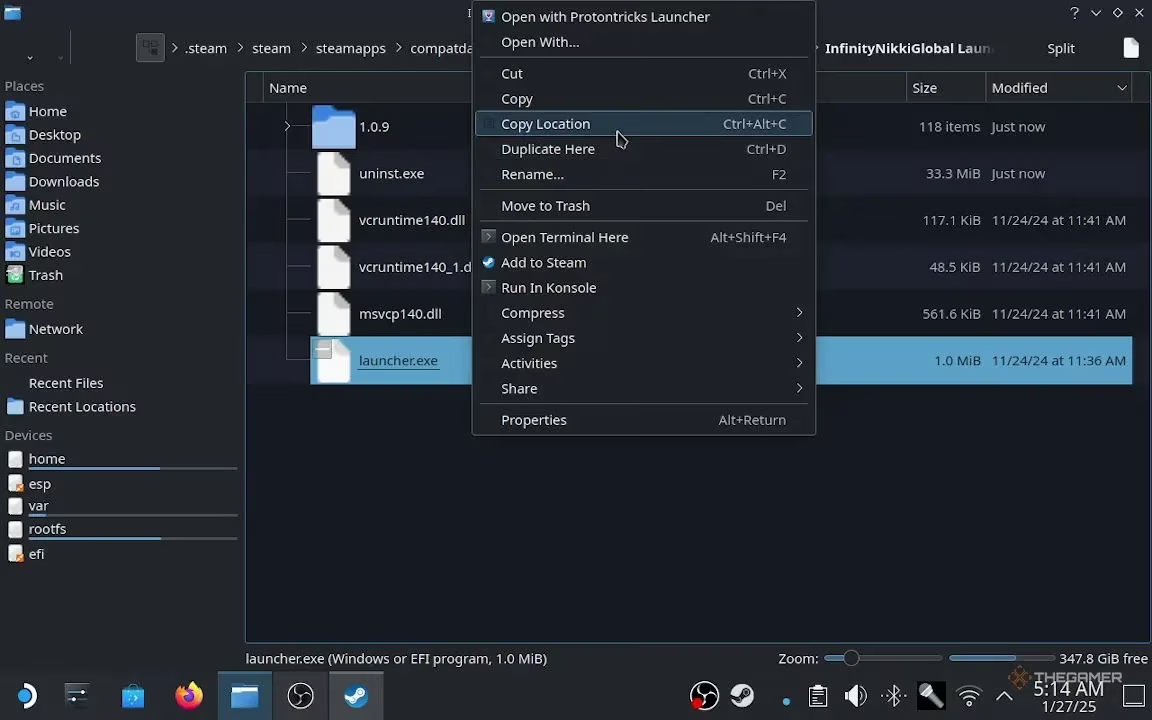
Go into: pfx > drive_c > Program Files > InfinityNikkiGlobal Launcher.
-
Inside, find
launcher.exe. Right-click (LT) on it and select "Copy Location". Save this text!
Step 6: Point Steam to the Real Game
We need to tell Steam to launch the actual game, not just the installer.
-
Go back to Steam and find the Infinity Nikki entry in your library.
-
Open its Properties again, but this time go to the "Shortcut" tab.
-
In the "Target" field, paste the copied location and surround it with quotation marks (e.g.,
"/home/deck/.../launcher.exe"). -
In the "Start In" field, paste the same location BUT WITHOUT the
/launcher.exepart AND NO quotation marks (e.g.,/home/deck/.../InfinityNikkiGlobal Launcher).
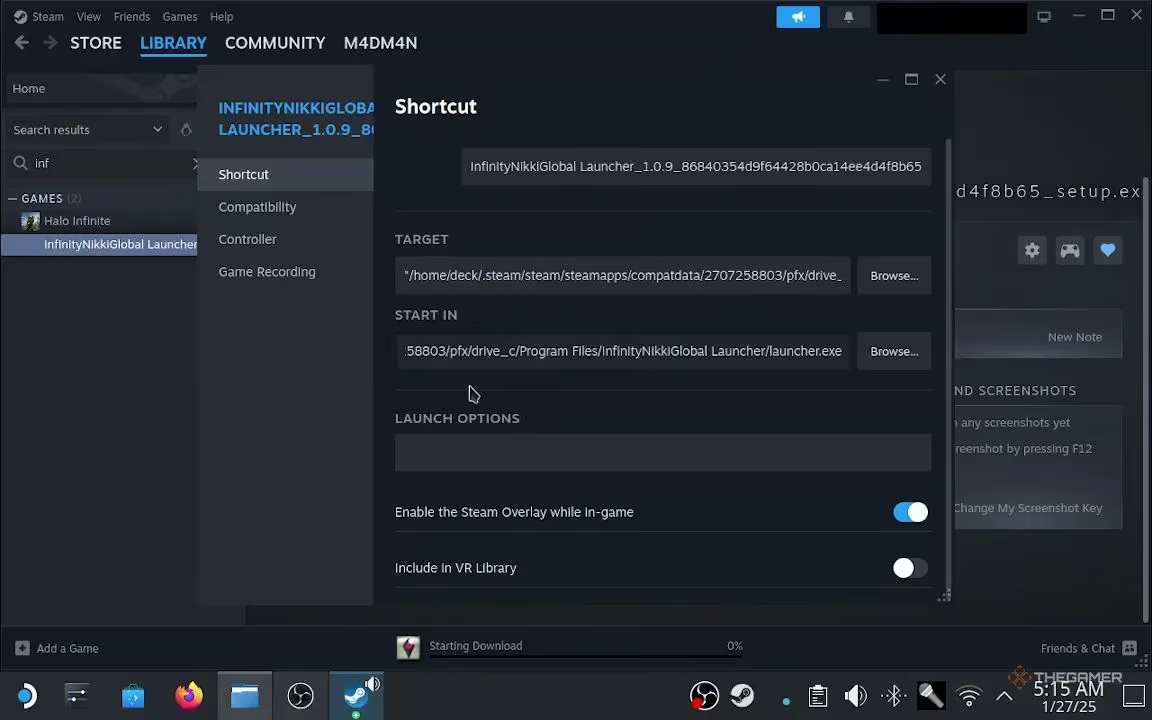
- (Optional but helpful): Rename the shortcut from "Infinity Nikki Setup" to just "Infinity Nikki" for easy finding in Gaming Mode.
Step 7: Download & Play! 🎮
The finish line is in sight!
-
Click Play in Steam. The Infinity Nikki Launcher should open.
-
Log in with your account details (use Steam+X for the keyboard!).
-
Click the big, beautiful "Download Now" button.
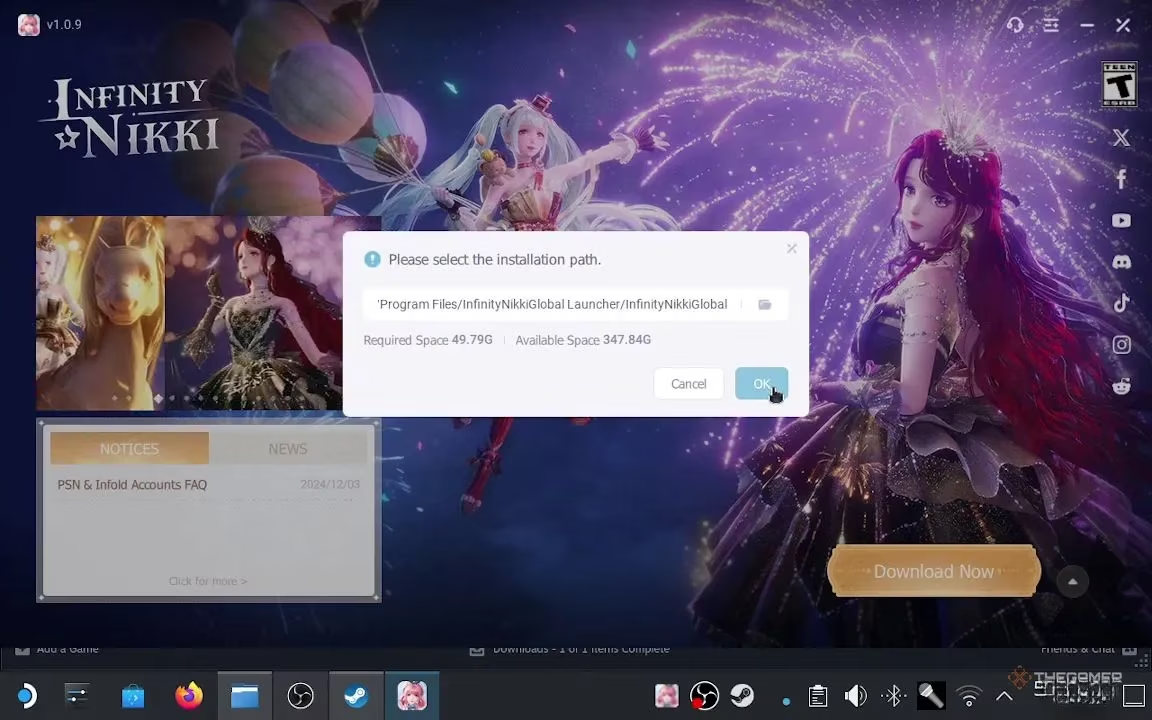
⚠️ Heads up: The game is roughly 50 GB, so grab a snack and maybe watch an episode of your favorite show while it downloads. It will install automatically.
-
Once finished, the button will change to "Start Game". BUT WAIT!
-
First, switch back to Gaming Mode. Find the "Return to Gaming Mode" shortcut on your desktop and double-click it.
Final Step: Enjoy in Gaming Mode!
Launch Infinity Nikki from your Steam Library in Gaming Mode. This ensures you get the best performance and battery life. Use the on-screen keyboard (Steam+X) to log in one final time, and... you're in! Time to explore that stunning, calm open world.
Bonus: How to Uninstall (If You Must!)
Need to free up space? Here's the clean way to remove everything:
-
Go back to Desktop Mode and navigate to that
compatdatafolder. -
Find and delete the numbered folder that contains Infinity Nikki (e.g.,
2707258803). -
Switch back to Gaming Mode, go to your Steam Library, find Infinity Nikki, select Manage > Uninstall.
And that's it! Wasn't that easier than you thought? Sure, it takes a few steps, but the payoff—playing this gorgeous, chill game on the go—is absolutely worth it. Now go forth, dress up, and explore! ✨